Bidirectional OKR-EPMS Integration Guide
This comprehensive guide explains how the bidirectional integration between OKR Hub and EPMS works, allowing objectives and goals to flow seamlessly in both directions. Leaders can see all contributing goals, track progress automatically, and maintain strategic alignment across the organization.
Who this is for: Managers, leaders, and administrators who use both OKR Hub and EPMS
Time needed: 15-20 minutes to read, ongoing use
Prerequisites: Access to OKR Hub and EPMS apps, at least one objective with cascaded goals
🎯 What You’ll Learn
- How to view all goals contributing to your objectives
- How to set up automatic progress rollup from goals to objectives
- How to use the Leader’s Dashboard widget
- How to configure progress calculation modes (Manual/Auto/Hybrid)
- How to monitor objective health scoring
- How to visualize the complete goal cascade hierarchy
📋 Key Features Overview
✅ What’s Been Delivered
Phase 1: Automatic Progress Rollup
- Goal progress automatically updates parent objectives
- Weighted calculation based on priority (Critical: 3x, High: 2x, Medium: 1x, Low: 0.5x)
- Real-time sync with timestamp tracking
Phase 2: Enhanced Visualization
- Contributing Goals section on objective details pages
- Leader’s Dashboard widget for at-a-glance view
- Clickable drill-down from objectives to goals
- Employee assignments and alignment scores visible
Phase 3: Advanced Configuration
- Three calculation modes: Manual, Auto, and Hybrid
- Health Scoring widget with status indicators
- Progress health tracking (on_track / at_risk / off_track)
- Visual cascade tree for complete hierarchy view
🚀 Getting Started
Quick Navigation
| Feature | Location | Purpose |
|---|---|---|
| Leader’s Dashboard Widget | OKR Hub Dashboard | See all objectives with goals at a glance |
| Contributing Goals Section | Objective Details Page | View all goals that support an objective |
| Health Scoring Widget | Objective Details Sidebar | Monitor objective health status |
| Progress Calculation Settings | Edit Objective Page | Configure how progress is calculated |
| Cascade Tree | EPMS → OKR Alignment | Visualize complete organizational hierarchy |
📊 Feature 1: Leader’s Dashboard Widget
Location
OKR Hub Dashboard: /apps/okr-hub
What You’ll See
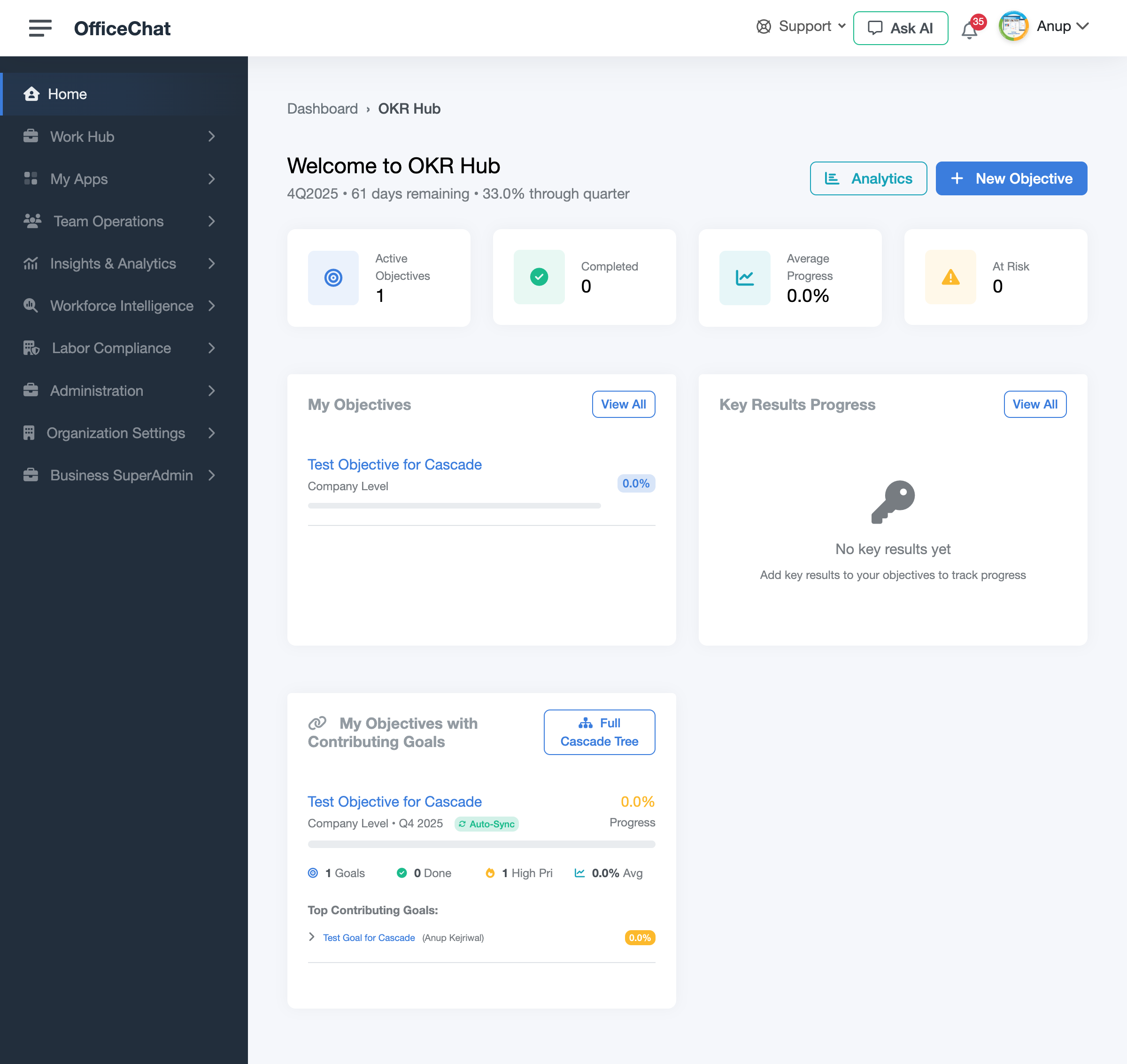
The Leader’s Dashboard Widget displays at the bottom of your OKR Hub dashboard and shows:
- Widget Title: “My Objectives with Contributing Goals”
- Full Cascade Tree button for complete hierarchy view
- Objective Cards with:
- Objective title (clickable link)
- Level & Quarter information
- Auto-Sync badge (if enabled)
- Overall progress percentage
- Quick statistics: Goals count, Completed, High Priority, Average Progress
- Top 3 Contributing Goals with employee names and progress bars
How to Access
- Navigate to
/apps/okr-hubor click OKR Hub in the main navigation - Scroll down past “My Objectives” and “Key Results Progress” sections
- Look for the “My Objectives with Contributing Goals” section
Key Actions
- Click objective title → View full objective details
- Click goal name → Open goal in EPMS (new tab)
- Click “Full Cascade Tree” → View complete organizational hierarchy
- Auto-Sync badge → Shows current calculation mode
💡 Note: This widget only appears if you own objectives that have cascaded goals from EPMS.
🎯 Feature 2: Contributing Goals Section
Location
Objective Details Page: /apps/okr-hub/objectives/[id]
What You’ll See
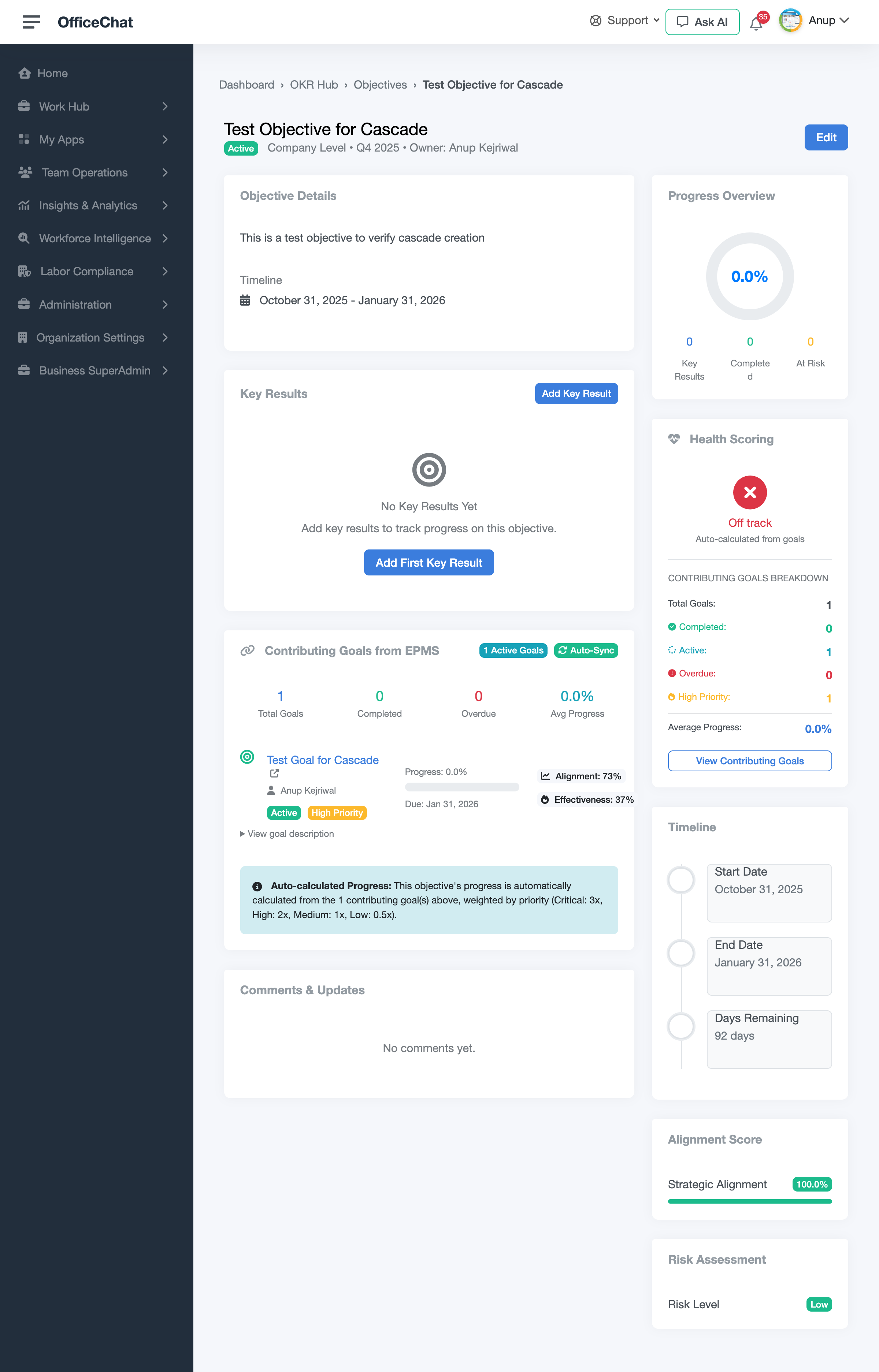
Located below the “Key Results” section on the objective details page:
Section Components
Header Area:
- Section title: “Contributing Goals from EPMS”
- Auto-Sync badge showing calculation mode
- Active goals count
Summary Statistics:
- Total Goals
- Completed Goals
- Overdue Goals
- Average Progress percentage
Goals List: Each goal displays:
- Goal title (clickable link to EPMS)
- Employee name and avatar
- Status badge (Active/Completed/On Hold)
- Priority badge (Critical/High/Medium/Low)
- Progress bar with percentage
- Due date
- Strategic Alignment Score
- Cascade Effectiveness Score
- Expandable description (click to view)
Information Alert:
- Explains auto-calculation methodology
- Shows weighting formula
- Displays last sync timestamp
How to Access
- Navigate to
/apps/okr-hub/objectives - Click on any objective that has cascaded goals
- Scroll down to the “Contributing Goals from EPMS” section
Key Actions
- Click goal title → Opens goal details in EPMS (new tab)
- View progress bars → Quick visual progress check
- Check alignment scores → Verify strategic alignment
- Expand descriptions → Read full goal details
- Monitor due dates → Track upcoming deadlines
⚠️ Important: This is the main view where leaders can see ALL goals contributing to their objectives, exactly who they’re assigned to, and drill down into details.
💚 Feature 3: Health Scoring Widget
Location
Objective Details Page (Right Sidebar): Located below “Progress Overview”
What You’ll See
The Health Scoring widget appears in the right sidebar and displays:
Health Status Indicator:
- ✓ On Track (green) - Progress is good, on schedule
- ⚠️ At Risk (yellow) - Behind schedule, needs attention
- ✗ Off Track (red) - Significantly behind, urgent action needed
Calculation Mode Badge:
- Shows if progress is auto-calculated, manual, or hybrid
Contributing Goals Breakdown:
- Total Goals - Overall goal count
- Completed (green) - Finished goals
- Active (blue) - In-progress goals
- Overdue (red) - Past due date goals
- High Priority (orange) - Critical and high priority goals
- Average Progress (blue) - Mean progress across all goals
Last Synced Timestamp:
- Shows when progress was last updated
- Format: “Last synced X minutes/hours ago”
View Contributing Goals Button:
- Quick link to jump to Contributing Goals section
How to Interpret Health Status
| Status | Color | Meaning | Action Required |
|---|---|---|---|
| On Track | 🟢 Green | Progress ≥ 80% of expected | Continue current approach |
| At Risk | 🟡 Yellow | Progress 50-79% of expected | Review and adjust plans |
| Off Track | 🔴 Red | Progress < 50% of expected | Immediate intervention needed |
Key Actions
- Monitor health status → Identify at-risk objectives early
- Review breakdown → Understand what’s driving status
- Check sync time → Verify data freshness
- Click “View Contributing Goals” → Navigate to detailed view
💡 Pro Tip: Check health scoring daily for critical objectives. The color-coded system makes it easy to spot issues at a glance.
⚙️ Feature 4: Progress Calculation Settings
Location
Edit Objective Page: /apps/okr-hub/objectives/[id]/edit
What You’ll See
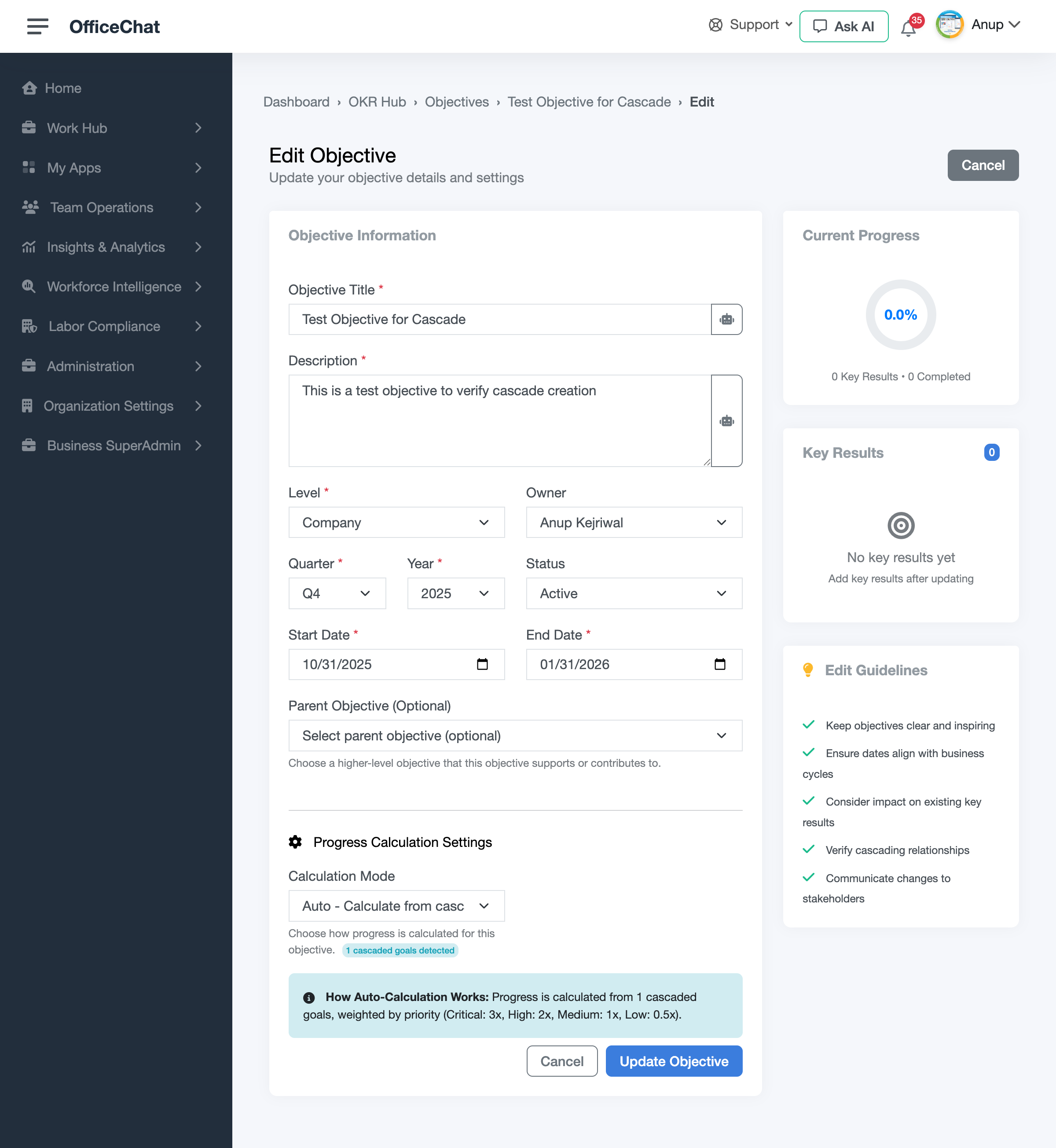
Located below the basic objective information section:
Section Header: “Progress Calculation Settings”
Calculation Mode Dropdown: Three options available
Option 1: Manual Mode
- You set progress percentage yourself
- No automatic updates from goals
- Traditional OKR management approach
When to use:
- Objectives without cascaded goals
- During planning phases
- When manual oversight is required
Option 2: Auto Mode ⭐ RECOMMENDED
- Progress auto-calculated from cascaded goals
- Weighted by goal priority
- Updates in real-time when goals change
- Hands-off management
When to use:
- Objectives with clear goal cascades
- Active implementation phases
- When you trust the automated calculation
Option 3: Hybrid Mode
- Auto-calculated by default
- Manual override available when needed
- Best of both worlds
When to use:
- Situations requiring occasional manual adjustments
- Complex objectives with external factors
- When you want automation but need flexibility
Configuration Steps
For Auto Mode:
- Click Edit on the objective
- Scroll to “Progress Calculation Settings”
- Select “Auto - Calculate from cascaded goals”
- Review the cascaded goals count badge
- Note the weighted calculation explanation
- Click Update Objective
For Hybrid Mode:
- Select “Hybrid - Auto with manual override”
- Check “Allow Manual Override” (optional)
- Enter Manual Progress Override percentage (optional)
- Click Update Objective
Understanding Weighted Calculation
The auto-calculation uses priority-based weighting:
| Priority | Weight | Impact |
|---|---|---|
| Critical | 3.0x | Highest impact on objective |
| High | 2.0x | Significant impact |
| Medium | 1.0x | Standard impact |
| Low | 0.5x | Minimal impact |
Formula:
Objective Progress = Σ(Goal Progress × Priority Weight) / Σ(Priority Weights)
Example:
- Goal A: 50% progress, High priority (2.0x weight)
- Goal B: 80% progress, Medium priority (1.0x weight)
- Calculation: (50 × 2.0 + 80 × 1.0) / (2.0 + 1.0) = 60% objective progress
Key Actions
- Choose calculation mode → Set how progress is tracked
- View cascaded goals count → See how many goals contribute
- Understand weighting → Review the calculation formula
- Toggle between modes → Change anytime as needs evolve
- Use hybrid for flexibility → Best of manual and auto
💡 Best Practice: Use “Auto” mode for objectives with active cascaded goals, and “Manual” for objectives without goals or during planning phases.
🌲 Feature 5: Cascade Tree Visualization
Location
EPMS → OKR Alignment → Cascade Tree: /apps/employee-performance-management/okr-alignment/cascade_tree
What You’ll See
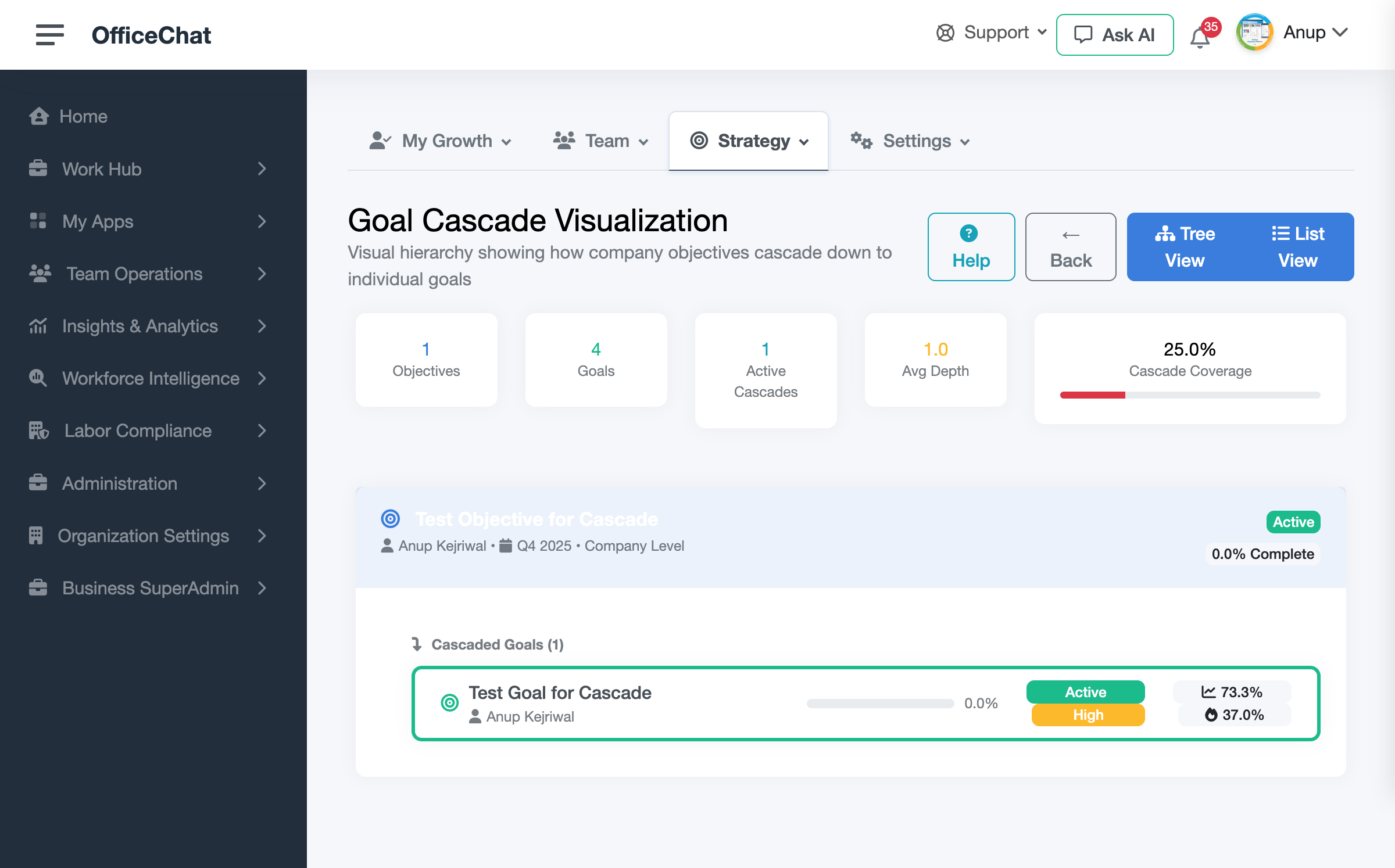
The Cascade Tree provides a comprehensive hierarchical view:
Page Header:
- Page title: “Goal Cascade Visualization”
- View toggle: Switch between Tree View and List View
- Back button to return to OKR Alignment
- Help button for contextual assistance
Statistics Dashboard:
Five key metrics displayed at the top:
- Objectives - Total objective count
- Goals - Total goals count
- Active Cascades - Number of active cascades
- Avg Depth - Average cascade depth level
- Cascade Coverage - Percentage of objectives with goals
Hierarchical Tree:
- Company Objectives (blue icons) at the top
- Cascaded Goals (green icons) below objectives
- Child Objectives (if any) showing department/team levels
- Indentation showing hierarchy depth
- Expandable sections for navigating complex structures
For Each Item:
- Title and description
- Owner name and avatar
- Quarter and year
- Organizational level (Company/Department/Team/Individual)
- Status badge
- Progress percentage with bar
- Alignment score (0-100%)
- Effectiveness score (0-100%)
Right Sidebar:
- Cascade Tree Help panel
- Best practices
- Understanding guide
- Color-coded legend
How to Access
Method 1: From OKR Hub Dashboard
- Go to
/apps/okr-hub - Scroll to “My Objectives with Contributing Goals”
- Click “Full Cascade Tree” button
Method 2: From EPMS OKR Alignment
- Navigate to EPMS:
/apps/employee-performance-management/okr-alignment - Click “Strategy” tab at the top
- Or click “Cascade Tree” link
Method 3: Direct URL
- Navigate directly to
/apps/employee-performance-management/okr-alignment/cascade_tree
View Options
Tree View (Default)
- Hierarchical indented layout
- Visual parent-child relationships
- Expandable/collapsible sections
- Best for understanding structure
List View
- Flat table format
- All items in rows
- Sortable columns
- Best for searching and filtering
Key Actions
- View complete hierarchy → See organizational cascade at once
- Expand/collapse sections → Navigate complex structures
- Click any item → View detailed information
- Toggle views → Switch between tree and list
- Review statistics → Understand coverage and depth
- Check alignment scores → Identify weak cascades
Understanding the Cascade
Visual Legend:
- 🔵 Blue Icons - Company or department-level objectives
- 🟢 Green Icons - Individual employee goals
- Indentation Level - Shows hierarchy depth
- Progress Bars - Indicate completion status
- Alignment Scores - Strategic alignment strength (0-100%)
Best Practices:
- Regular review (weekly or monthly)
- Aim for 80%+ cascade coverage
- Keep depth reasonable (2-3 levels)
- Monitor alignment scores
- Use in team meetings for strategic discussions
💡 Use Case: This is perfect for leadership meetings, strategic planning sessions, and quarterly business reviews to show how company objectives cascade to individual contributions.
🔄 How Auto-Rollup Works
Data Flow
Step-by-Step Process
- Employee updates goal progress in EPMS (e.g., from 25% to 50%)
- System callback triggered automatically
- Find parent objective via strategic cascade relationship
- Check calculation mode (skip if Manual)
- Gather all contributing goals for the objective
- Calculate weighted average:
- Multiply each goal progress by its priority weight
- Sum all weighted progress values
- Divide by sum of all weights
- Update objective progress in OKR Hub
- Record sync timestamp
- Display in UI with “Last synced X minutes ago”
Real-Time Sync Example
Before:
- Objective: 40% complete
- Goal A (High): 30% complete
- Goal B (Medium): 50% complete
Employee updates Goal A to 70%:
Calculation:
New Progress = (70% × 2.0 + 50% × 1.0) / (2.0 + 1.0)
             = (140 + 50) / 3.0
             = 63.3%
After:
- Objective: 63% complete (automatically updated!)
- Goal A (High): 70% complete ✓
- Goal B (Medium): 50% complete
- Last synced: Just now
✅ Common Workflows
Workflow 1: Setting Up a New Objective with Auto-Rollup
Duration: 10 minutes
- Create objective in OKR Hub
- Go to
/apps/okr-hub/objectives/new - Fill in title, description, dates, owner
- Save
- Go to
- Create cascaded goals in EPMS
- Go to EPMS Goals:
/apps/employee-performance-management/goals - Create 2-3 goals linked to the objective
- Assign to different employees
- Set varying priorities
- Go to EPMS Goals:
- Configure auto-calculation
- Edit the objective
- Set calculation mode to “Auto”
- Verify cascaded goals count
- Save
- Verify integration
- View objective details
- Check Contributing Goals section
- Confirm all goals appear
- Note initial progress
- Test auto-rollup
- Update a goal’s progress in EPMS
- Refresh objective page
- Verify progress updated automatically
- Check “Last synced” timestamp
Workflow 2: Monitoring Objective Health
Duration: 5 minutes daily
- Start at OKR Hub Dashboard
- Navigate to
/apps/okr-hub - View Leader’s Dashboard Widget
- Scan for Auto-Sync badges
- Navigate to
- Check health indicators
- Look for color-coded status
- Green = On Track, continue
- Yellow = Review and adjust
- Red = Immediate attention needed
- Drill down on at-risk objectives
- Click objective title
- Review Health Scoring widget
- Check Contributing Goals breakdown
- Identify bottlenecks
- Take action
- Click on overdue goals
- Contact goal owners
- Adjust priorities if needed
- Update plans
Workflow 3: Using Cascade Tree for Team Meetings
Duration: 15 minutes in meeting
- Before the meeting
- Navigate to Cascade Tree
- Review statistics
- Note areas to discuss
- During the meeting
- Share screen showing Cascade Tree
- Point out company objectives at top
- Show how they cascade to team goals
- Highlight progress and alignment
- Discuss as a team
- Review low alignment scores
- Identify gaps in coverage
- Celebrate completed goals
- Plan new cascades
- Follow up actions
- Assign new goals to fill gaps
- Adjust priorities based on discussion
- Set target for next review
🎯 Success Indicators
You’ll know the integration is working correctly when:
- Dashboard widget displays your objectives with contributing goals
- Progress updates automatically when goals are changed in EPMS
- Health scoring shows accurate status based on goal progress
- Links from objectives to goals work (open in new tabs)
- Last synced timestamps are recent (within minutes)
- Contributing Goals section shows all linked goals
- Alignment scores are calculated and displayed
- Cascade Tree shows complete organizational hierarchy
- Weighted calculation reflects goal priorities correctly
💡 Best Practices
For Leaders
- Use Auto Mode: Let the system calculate progress for you
- Review Daily: Check Health Scoring widget each morning
- Leverage Dashboard Widget: Quick status check without clicking
- Monitor Cascade Coverage: Aim for 80%+ of objectives with goals
- Use Cascade Tree: Perfect for team meetings and strategic discussions
For Managers
- Set Clear Priorities: Use Critical/High for important goals
- Keep Goals Updated: Ensure team members update progress regularly
- Review Alignment Scores: Work on goals with low alignment
- Use Hybrid Mode: When you need manual oversight with automation
- Check Effectiveness: Track cascade effectiveness scores
For Individual Contributors
- Update Progress Regularly: Your updates flow up automatically
- Understand Priority: Know how your goal impacts the objective
- Check Alignment: See how your work connects to company goals
- Use Due Dates: Keep goals on track with clear deadlines
- Review Cascade Tree: Understand your place in the bigger picture
❓ Frequently Asked Questions
Q: Why isn’t my objective updating automatically?
A: Check these items:
- Verify calculation mode is set to “Auto” or “Hybrid”
- Confirm goals are properly linked (check Contributing Goals section)
- Ensure goals have progress updates (not all at 0%)
- Check “Last synced” timestamp - if old, there may be a system issue
Q: How often does progress sync?
A: Progress syncs immediately when a goal is updated. The “Last synced” timestamp shows when the most recent update occurred.
Q: Can I override auto-calculated progress?
A: Yes! Use Hybrid mode with “Allow Manual Override” enabled. Enter your manual percentage, and it will override the auto-calculation.
Q: What if I have no cascaded goals?
A: Use Manual mode for objectives without cascaded goals. You can add goals later and switch to Auto mode when ready.
Q: How does priority weighting work?
A: Goals are weighted by priority:
- Critical = 3.0x impact
- High = 2.0x impact
- Medium = 1.0x impact
- Low = 0.5x impact
This ensures high-priority goals have more influence on objective progress.
Q: Can I see historical progress?
A: Yes. The system tracks progress updates over time. View the progress history in the objective’s activity feed.
Q: What’s the difference between Alignment and Effectiveness scores?
A:
- Alignment Score: How well the goal aligns with the objective’s strategic direction
- Effectiveness Score: How effective the cascade is at achieving the objective
Q: How do I improve cascade coverage?
A:
- Review objectives without goals using Cascade Tree
- Create new goals in EPMS linked to those objectives
- Assign goals to team members
- Aim for at least 2-3 goals per objective
Q: Can multiple objectives share the same goal?
A: Yes! A single goal can contribute to multiple objectives through multiple strategic cascades.
Q: What happens if I change calculation mode?
A: Switching modes takes effect immediately:
- Auto → Manual: Progress stops auto-updating, set manually
- Manual → Auto: Progress recalculates from goals immediately
- Hybrid: Flexible - can toggle override on/off
🔧 Troubleshooting
Issue: Contributing Goals section is empty
Solutions:
- Verify goals are linked via Strategic Cascades
- Check EPMS OKR Alignment dashboard for cascade relationships
- Ensure goals have proper business scoping
- Create new cascades if none exist
Issue: Progress not updating
Solutions:
- Check calculation mode is “Auto” or “Hybrid”
- Verify goals have been updated in EPMS
- Check “Last synced” timestamp
- Try manually triggering recalculation (edit and save objective)
- Contact support if issue persists
Issue: Health Scoring shows “Off Track” incorrectly
Solutions:
- Review Contributing Goals breakdown for accuracy
- Check if goals have realistic due dates
- Verify goal priorities are set correctly
- Consider if expectations need adjustment
Issue: Cascade Tree not loading
Solutions:
- Check browser console for errors
- Verify you have access to both OKR Hub and EPMS
- Try refreshing the page
- Clear browser cache
- Try different browser
Issue: Wrong goals showing in Contributing Goals
Solutions:
- Review strategic cascade relationships in EPMS
- Unlink incorrect goals
- Create proper cascade relationships
- Refresh objective page
📚 Related Documentation
- EPMS Goals Management Guide - Complete guide to managing goals in EPMS
- EPMS Comprehensive Guide - Full EPMS feature documentation
- EPMS Integrations Guide - All EPMS integration points
🆘 Getting Help
In-App Support
- Help Button: Click “?” icon on any page for contextual help
- AI Assistant: Available in right sidebar for questions
- Support Ticket: Navigate to Support → Create Case
Training Resources
- Video Tutorials: Available in Help Center
- Live Training: Contact your admin for schedule
- Documentation: Complete docs at
/docs/and/src/docs/
Contact
- Technical Support: support@workforce.mangoapps.com
- Feature Requests: features@workforce.mangoapps.com
- Training: training@workforce.mangoapps.com
🎉 What’s Next?
Now that you understand the bidirectional OKR-EPMS integration:
- Set up your first auto-calculated objective
- Add the Leader’s Dashboard Widget to your daily routine
- Use Cascade Tree in your next team meeting
- Monitor health scoring for early intervention
- Share this guide with your team
Remember: The system is designed to save you time and provide better insights. The more you use auto-rollup, the less manual tracking you need to do!
Last Updated: October 31, 2025
Version: 1.0
Category: EPMS Integration